meta données pour cette page
Ces afficheurs LCD sont gérés par un bus série I²C que l’on peut commander par les broches SDA & SCL de la carte Arduino :
- pour une carte Arduino Mega, ce sont les broches Digital 20 & 21
- pour une carte Arduino Uno, ce sont les broches Analogiques A4 & A5
- etc…
Bien entendu il est vivement conseillé d’utiliser l’IDE Arduino "TechnoNantes" car j’y ai mis à jour les bibliothèques dont vous avez besoin : NewLiquidCrystal.
DE QUOI S'AGIT IL ?
En utilisant une communication série comme celle du bus I²C, vous envoyez des données les unes après les autres qui sont interprétées à la volée.
Pour ce genre d’écran,vous avez généralement besoin de connecter 6 broches : RS, EN, D7, D6, D5, et D4 afin de communiquer avec le LCD . Mais l’interface I²C vous permet d’économiser vos connectiques et ne nécessite plus que 2 fils (le bus I2C) pour recevoir les informations à afficher. Et comme il s’agit d’un bus, si vous avez déjà un périphérique I²C, ce module ne vous prendra pas de connectique supplémentaire.
Vous pouvez vous connecter directement sur une connectique déportée du bus I²C (shield TechnoZone51, Grove, Tinkerkit, etc) mais aussi par vous même sur la carte Arduino en analysant les données transmises par les différents fils :

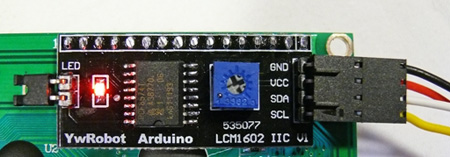
exemple de la UNO :
GND - GND
VCC - 5V
SDA - ANALOG Pin 4
SCL - ANALOG pin 5
NOTE **: sur les cartes pour bus I²C rajoutées à un afficheur nu, vous trouverez un potentiomètre au dos pour ajuster le //Contraste.**// DOnc si aucun caractère ne s’affiche, pensez à vérifier cela aussi.
Vous trouverez ci-dessous des programmes d’exemples pour des affichages différents. Ils afficheront sur le LCD des caractères que vous tapez sur l’écran du Moniteur série.
**Les programmes sont issus du site : http://arduino-info.wikispaces.com **
Scanner d'adresses I²C
Connectez votre écran LCD sur votre shield ou carte Arduino, téléversez le programme ci-après pour qu’il vous liste dans la console (le port série en haut à droite de l’EDI Arduino) les adresses trouvées. **ATTENTION **à bien régler la vitesse de la console à 115200bps comme dans le programme.
Le sketch est téléchargeable ici : scanner_I2C.ino
Afficheur I²C LCD VERSION 1
Exemple de programme pour un afficheur 2 lignes 16 caractères :
(NOTE : il s’agit d’écrans avec au dos une interface nommée “YwRobot Arduino LCM1602 IIC V1” ou bien avec seulement //“A0 A1 A2” //comme ci-dessous)
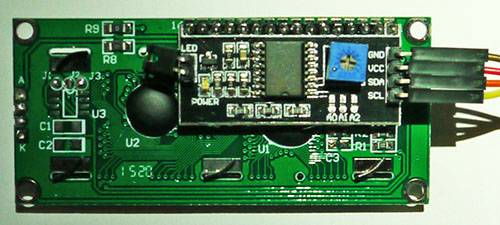
/* YourDuino.com Example Software Sketch
 16 character 2 line I2C Display
 Backpack Interface labelled "A0 A1 A2" at lower right.
 ..and
 Backpack Interface labelled "YwRobot Arduino LCM1602 IIC V1"
 MOST use address 0x27, a FEW use 0x3F
 terry@yourduino.com */

/*-----( Import needed libraries )-----*/
#include <Wire.h>  // Comes with Arduino IDE
#include <LiquidCrystal_I2C.h>

// set the LCD address to 0x27 for a 16 chars 2 line display
// A FEW use address 0x3F
// Set the pins on the I2C chip used for LCD connections:
//                    addr, en,rw,rs,d4,d5,d6,d7,bl,blpol
LiquidCrystal_I2C lcd(0x27, 2, 1, 0, 4, 5, 6, 7, 3, POSITIVE);  // Set the LCD I2C address

void setup()   /*----( SETUP: RUNS ONCE )----*/
{
  Serial.begin(9600);  // Used to type in characters
  lcd.begin(16,2);   // initialize the lcd for 16 chars 2 lines, turn on backlight
//------- Quick 3 blinks of backlight  -------------
  for(int i = 0; i<3; i++)
  {
    lcd.backlight();
    delay(250);
    lcd.noBacklight();
    delay(250);
  }
  lcd.backlight(); // finish with backlight on

//-------- Write characters on the display ------------------
// NOTE: Cursor Position: (CHAR, LINE) start at 0
  lcd.setCursor(0,0); //Start at character 4 on line 0
  lcd.print("Hello, world!");
  delay(1000);
  lcd.setCursor(0,1);
  lcd.print("HI!YourDuino.com");
  delay(8000);

// Wait and then tell user they can start the Serial Monitor and type in characters to
// Display. (Set Serial Monitor option to "No Line Ending")
  lcd.clear();
  lcd.setCursor(0,0); //Start at character 0 on line 0
  lcd.print("Use Serial Mon");
  lcd.setCursor(0,1);
  lcd.print("Type to display");
}/*--(end setup )---*/

void loop()   /*----( LOOP: RUNS CONSTANTLY )----*/
{
  {
    // when characters arrive over the serial port...
    if (Serial.available()) {
      // wait a bit for the entire message to arrive
      delay(100);
      // clear the screen
      lcd.clear();
      // read all the available characters
      while (Serial.available()> 0) {
        // display each character to the LCD
        lcd.write(Serial.read());
      }
    }
  }

}/*
 --(end main loop )-- */
Exemple de programme pour un afficheur 4 lignes 20 caractères :
(NOTE : il s’agit d’écrans avec au dos une interface nommée “YwRobot Arduino LCM1602 IIC V1”)
/* YourDuino.com Example Software Sketch
 20 character 4 line I2C Display
 Backpack Interface labelled "YwRobot Arduino LCM1602 IIC V1"
 Connect Vcc and Ground, SDA to A4, SCL to A5 on Arduino
 terry@yourduino.com */

/*-----( Import needed libraries )-----*/
#include <Wire.h>  // Comes with Arduino IDE
#include <LiquidCrystal_I2C.h>

// set the LCD address to 0x27 for a 20 chars 4 line display
// Set the pins on the I2C chip used for LCD connections:
//                    addr, en,rw,rs,d4,d5,d6,d7,bl,blpol
LiquidCrystal_I2C lcd(0x27, 2, 1, 0, 4, 5, 6, 7, 3, POSITIVE);  // Set the LCD I2C address

void setup()   /*----( SETUP: RUNS ONCE )----*/
{
  Serial.begin(9600);  // Used to type in characters
  lcd.begin(20,4);         // initialize the lcd for 20 chars 4 lines, turn on backlight
// ------- Quick 3 blinks of backlight  -------------
  for(int i = 0; i<3; i++)
  {
    lcd.backlight();
    delay(250);
    lcd.noBacklight();
    delay(250);
  }
  lcd.backlight(); // finish with backlight on

//-------- Write characters on the display ------------------
  // NOTE: Cursor Position: Lines and Characters start at 0
  lcd.setCursor(3,0); //Start at character 4 on line 0
  lcd.print("Hello, world!");
  delay(1000);
  lcd.setCursor(2,1);
  lcd.print("From YourDuino");
  delay(1000);
  lcd.setCursor(0,2);
  lcd.print("20 by 4 Line Display");
  lcd.setCursor(0,3);
  delay(2000);
  lcd.print("http://YourDuino.com");
  delay(8000);
  // Wait and then tell user they can start the Serial Monitor and type in characters to
  // Display. (Set Serial Monitor option to "No Line Ending")
  lcd.setCursor(0,0); //Start at character 0 on line 0
  lcd.print("Start Serial Monitor");
  lcd.setCursor(0,1);
  lcd.print("Type chars 2 display");
}/*--(end setup )---*/

void loop()   /*----( LOOP: RUNS CONSTANTLY )----*/
{
  {
    // when characters arrive over the serial port...
    if (Serial.available()) {
      // wait a bit for the entire message to arrive
      delay(100);
      // clear the screen
      lcd.clear();
      // read all the available characters
      while (Serial.available()> 0) {
        // display each character to the LCD
        lcd.write(Serial.read());
      }
    }
  }
}/* --(end main loop )-- */
Afficheur I²C LCD VERSION 2 :
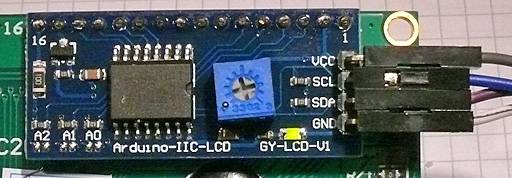
La carte est estampillée “Arduino-IIC-LCD GY-LCD-V1”. ATTENTION : les fils ne sont pas câblés dans le même ordre !
Exemple de programme pour un afficheur 4 lignes 20 caractères :
#include <Wire.h>  // Comes with Arduino IDE
#include <LiquidCrystal_I2C.h>
// set the LCD address to 0x27 for a 20 chars 4 line display
// Set the pins on the I2C chip used for LCD connections:
//                    addr, en,rw,rs,d4,d5,d6,d7,bl,blpol
LiquidCrystal_I2C lcd(0x20, 4, 5, 6, 0, 1, 2, 3, 7, NEGATIVE);  // Set the LCD I2C address

void setup()
{
  Serial.begin(9600);
  lcd.begin(20,4);
// NOTE: Cursor Position: CHAR, LINE) start at 0
  lcd.setCursor(3,0); //Start at character 4 on line 0
  lcd.print("Hello, world!");
  delay(1000);
  lcd.setCursor(2,1);
  lcd.print("From YourDuino");
  delay(1000);
  lcd.setCursor(0,2);
  lcd.print("20 by 4 Line Display");
  lcd.setCursor(0,3);
  delay(2000);
  lcd.print("http://YourDuino.com");
  delay(8000);
// Wait and then tell user they can start the Serial Monitor and type in characters to
// Display. (Set Serial Monitor option to "No Line Ending")
  lcd.setCursor(0,0); //Start at character 0 on line 0
  lcd.print("Start Serial Monitor");
  lcd.setCursor(0,1);
  lcd.print("Type chars 2 display");
}

void loop()
{
  {
    if (Serial.available()) {
      delay(100);
      lcd.clear();
      while (Serial.available()> 0) {
        lcd.write(Serial.read());
      }
    }
  }
}
Afficheur I²C LCD VERSION 3 :
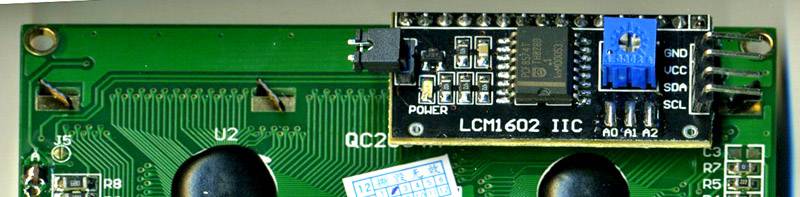
Cette fois ci la carte contrôleur au dos est repérée “LCM1602 IIC A0 A1 A2” ( // voir la photo // ) ATTENTION : certaines de ces cartes ont les ports A0 A1 A2 qui ne sont pas connectés (voir la photo). Ces cartes ont l’adresse I²C 0x27 et pas 0x20. Voici ci-dessous l’exemple de la ligne changée pour corresondre :
LiquidCrystal_I2C lcd(0x20, 2, 1, 0, 4, 5, 6, 7, 3, POSITIVE);
DOIT ETRE REMPLACEE PAR :
LiquidCrystal_I2C lcd(0x27, 2, 1, 0, 4, 5, 6, 7, 3, POSITIVE);
Les bibliothèques à charger n’ont pas changé. Voici un exemple de programme pour ce type d’afficheur :
#include <Wire.h>
#include <LiquidCrystal_I2C.h>
// set the LCD address to 0x20 for a 20 chars 4 line display
// Set the pins on the I2C chip used for LCD connections : addr, en,rw,rs,d4,d5,d6,d7,bl,blpol
LiquidCrystal_I2C lcd(0x20, 2, 1, 0, 4, 5, 6, 7, 3, POSITIVE);  // Set the LCD I2C address

void setup()
{
  Serial.begin(9600);
  lcd.begin(20,4);
// ------- Quick 3 blinks of backlight  -------------
  for(int i = 0; i<3; i  )
  {
    lcd.backlight();
    delay(250);
    lcd.noBacklight();
    delay(250);
  }
  lcd.backlight(); // finish with backlight on

//-------- Write characters on the display ----------------
// NOTE: Cursor Position: CHAR, LINE) start at 0
  lcd.setCursor(3,0); //Start at character 4 on line 0
  lcd.print("Hello, world!");
  delay(1000);
  lcd.setCursor(2,1);
  lcd.print("From YourDuino");
  delay(1000);
  lcd.setCursor(0,2);
  lcd.print("20 by 4 Line Display");
  lcd.setCursor(0,3);
  delay(2000);
  lcd.print("http://YourDuino.com");
  delay(8000);
// Wait and then tell user they can start the Serial Monitor and type in characters to
// Display. (Set Serial Monitor option to "No Line Ending")
  lcd.setCursor(0,0); //Start at character 0 on line 0
  lcd.print("Start Serial Monitor");
  lcd.setCursor(0,1);
  lcd.print("Type chars 2 display");
}

void loop()
{
  {
    if (Serial.available()) {
      delay(100);
      lcd.clear();
      while (Serial.available()> 0) {
        lcd.write(Serial.read());
      }
    }
  }
}